Culmination of Service
Introduction:
Culmination of Service is managed by the HR department of an organization. This system urges to make the process digitally recorded and simplifies the arduous process for both the HR department as well as for the faculty.
Getting Started:
To access Budget Management System
Open an internet browser (Recommended to use Google Chrome)
Type https://my.amrita.edu/ and click enter
Login with your amrita email id and password.
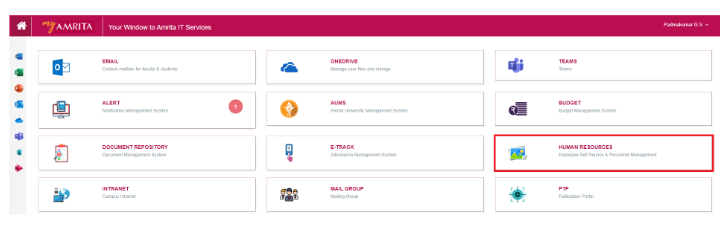
Click HUMAN RESOURCES.
Prerequisite:
Before going to culmination module, please make sure you have added
Notification / Dues Department
Email Template
Add Notification / Dues Department:
For a staff get relieve, he/she must clear all no dues approval from certain departments. HR department need to send notifications to these departments regarding the culmination service of the staff.
Go to School page under Administration >> Settings
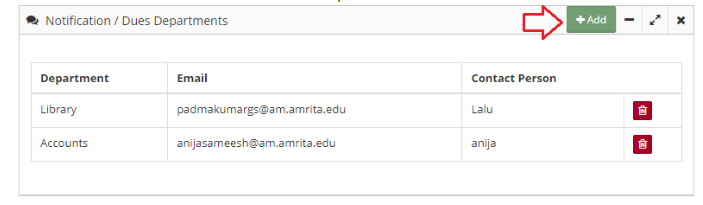
Click Add button in the Notification / Dues Department
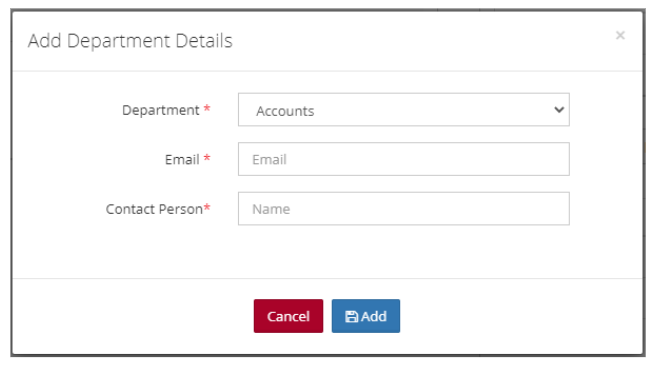
Add department details window opens.
Select department from drop-down, enter email address and contact person name. Click Add button.
Add Email Template:
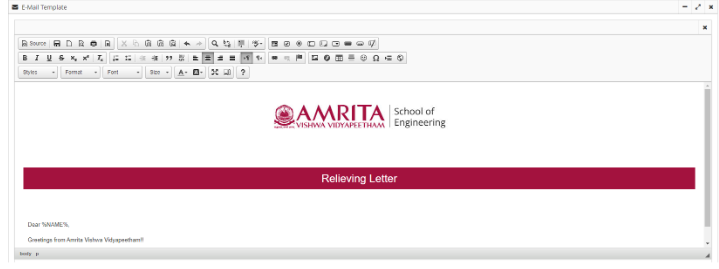
You need to add email template for sending relieving letter to a staff.
Go to School page under Administration >> Settings
You can design / add your own email templates here.
If you have a html code,
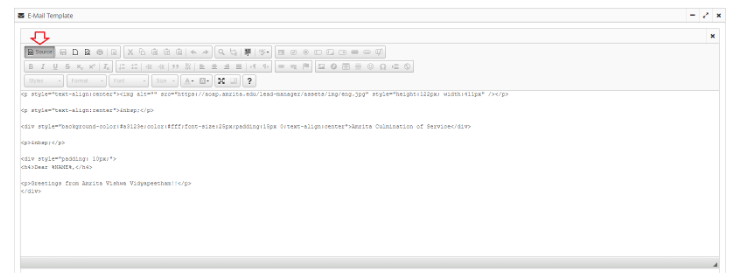
Click on Source button to view in code mode
Paste the code in the text area. Edit the code if required using the tools available in the tool menu.
Click on Source button again to view the code as html mode
Start Culmination Process:
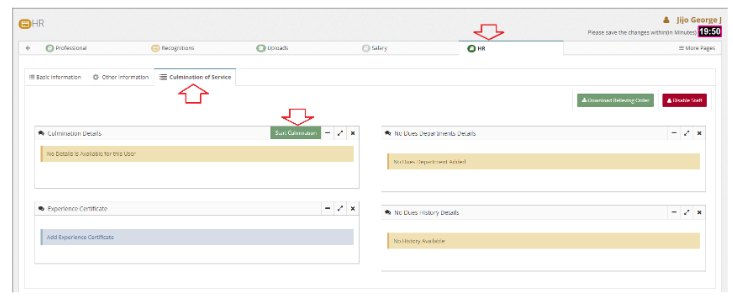
Go to HR page of the staff.
Go to Culmination of Service tab.
Click Start Culmination button.
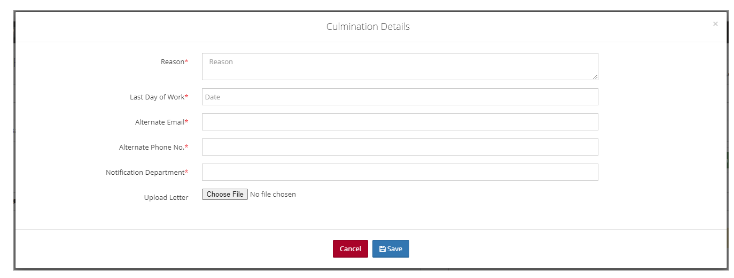
Add Reason, Last day of work, Alternate email, Alternate phone number, Notification / No Dues Departments, and any upload any documents to attach.
Click Save button.
Once the culmination details window is saved, automated email will be send to all the No Dues departments. Culmination process will complete only after all the No Dues Department approves the process.
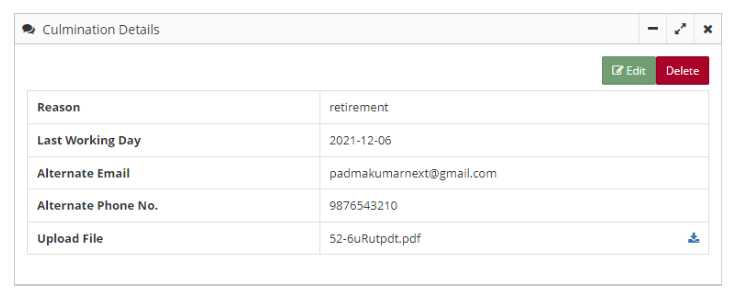
HR can Edit or delete the culmination process by clicking Edit or Delete button respectively.
There are three No dues notification status
Pending - Approval is still in pending status from no dues department. Email can be resend to remind again.
Approved - No Dues Department has approved the culmination process.
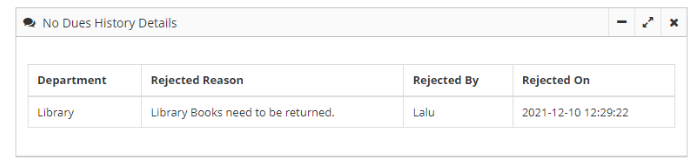
Rejected - No Dues Department has rejected the culmination process on the basis of pending dues. Email can be resend after closing all dues. Rejection history will be displayed under No dues History details.
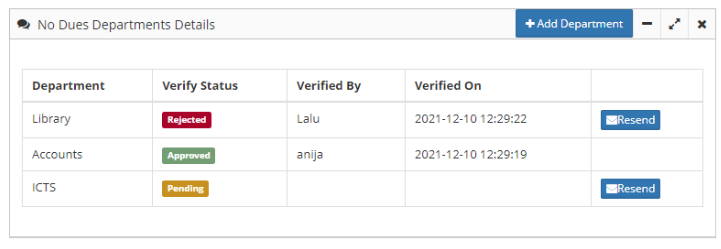
HR can add more No Dues Department for approval by clicking Add department button in No Dues Department Details box.
No Dues rejection history is displayed in the History table.
Once all the No Dues verification got approved, Click on Upload button to upload the Experience certificate.
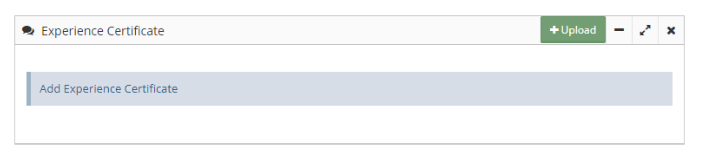
Once HR uploads experience certificate, Send Relieving Order & Experience Certificate button will get displayed.
Clicking this button will send an email with relieving order and experience certificate to the alternate email id of the staff. Application uses the email template which we configured early for the relieving order.
HR can download the Relieving letter as pdf by clicking Download Relieving Order button.
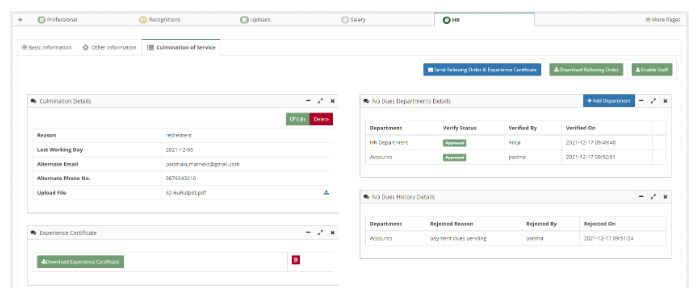
Staff status will get Disabled automatically once the Email with relieving order and experience certificate is send.